
How Capacity Autopilot works
In this article
In this article group
- Block bookings for specific dates (heat waves, holidays, time off)
- Closing Days and Hours Your Agents Shouldn't Book
- Scheduling and Bookings
- Job Limits — How Full a Day Gets Before Agents Stop Offering It
- Job Summary — What Jenny Writes on the Jobs She Books
- Holidays — Keeping Closed Days Off the Schedule
- Lead Time — How Much Notice Your Agents Leave
- Office Hours — What They Change (and What They Don't)
Capacity Autopilot lets you tell your agents to stop booking a type of work once a time slot reaches a limit you set — so you always keep room for emergencies, install crews, or whatever else you want to protect. Without caps, agents keep booking a window until ServiceTitan itself is full. With caps, they stop earlier, on your terms.
What a cap is
A cap is one rule that reads like a sentence:
For this group of business units, on this group of job types, during this arrival window, on this day of the week, within this date window → don't book past N% of capacity.
A cap covers exactly what it names. Anything a cap doesn't cover runs at 100% — so if you want a combination blocked or throttled, every arrival window and every day you care about needs its own cap. One space left empty is one slot still bookable.
Two kinds of cap: percentage and count
Your account runs its caps in one of two modes. You pick the mode in Step 1 of setup, and you can switch it later from the Cap mode box on the Overview tab.
Percentage caps (most accounts): don't book past N% of the capacity in an arrival window. A blank cap means no limit; 0% blocks that work from the window. The setup steps below are written for this mode.
Count caps: don't book more than N jobs per day for a business unit group and job type group in a date window. A count cap looks at the whole day rather than one arrival window. You set a Max per tech / day and choose whether it's Pooled (scaled by the technicians on shift) or Per technician. See How count caps add up before you set one.
If you're not sure which mode fits your account, email support@upsmith.com.
Before you start
Your account is connected to ServiceTitan (you can see your real business units, job types, and technicians in UpSmith).
You know, even roughly, which service lines you cap together — e.g. "Plumbing" vs. "HVAC Install" vs. "Sales." You don't need exact percentages yet, just the grouping.
The setup — five steps
Open Autopilot from the UpSmith navigation. If you haven't set up Capacity Autopilot yet, the setup wizard opens automatically. UpSmith pre-fills each step from your ServiceTitan data — review and adjust before you turn it on. You can jump between steps from the list on the left, and saved progress sticks, so you can come back.
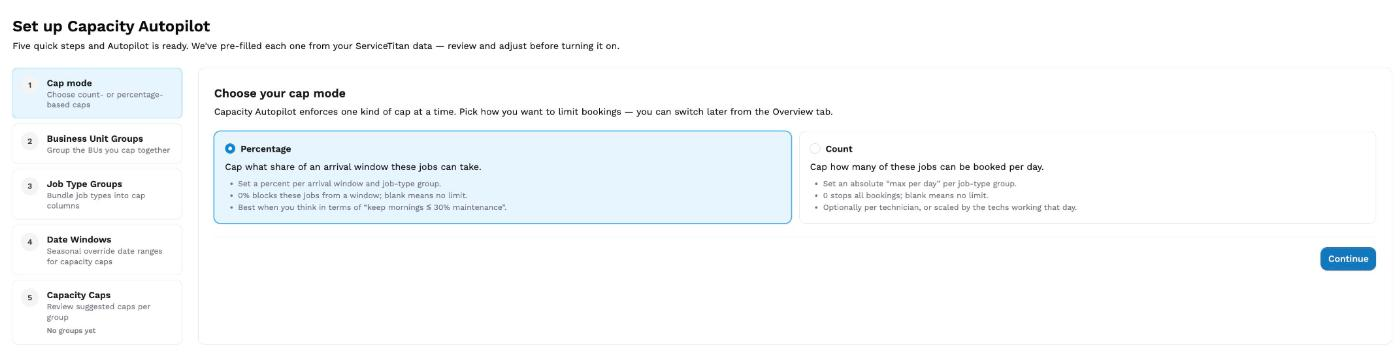
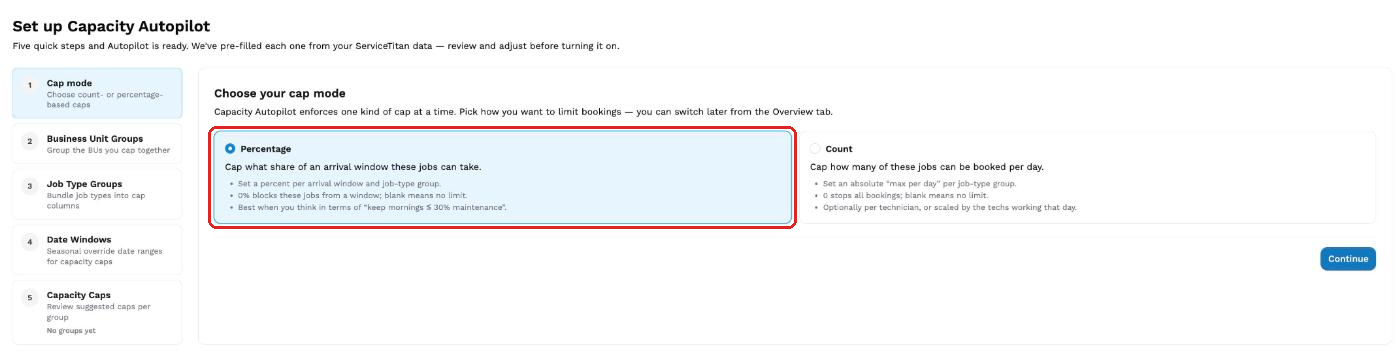
Step 1 — Cap mode. Capacity Autopilot enforces one kind of cap at a time. Choose Percentage to cap what share of an arrival window a group of job types can take, or Count to cap how many of them can be booked per day. Most accounts run percentage caps. Click Continue. You can switch later from the Overview tab.
Step 2 — Business Unit Groups. Bundle your ServiceTitan business units into the service lines you actually cap together (e.g. "Gaston – HVAC Install" + "Greenville – HVAC Install" → one group, "HVAC Install"). Caps are set per group, so this is where you normalize. Click Sync from ServiceTitan to pull them in, then Add Business Unit Group, name it something you'll recognize, pick the business units that roll up to it, and save. A business unit can only live in one group.
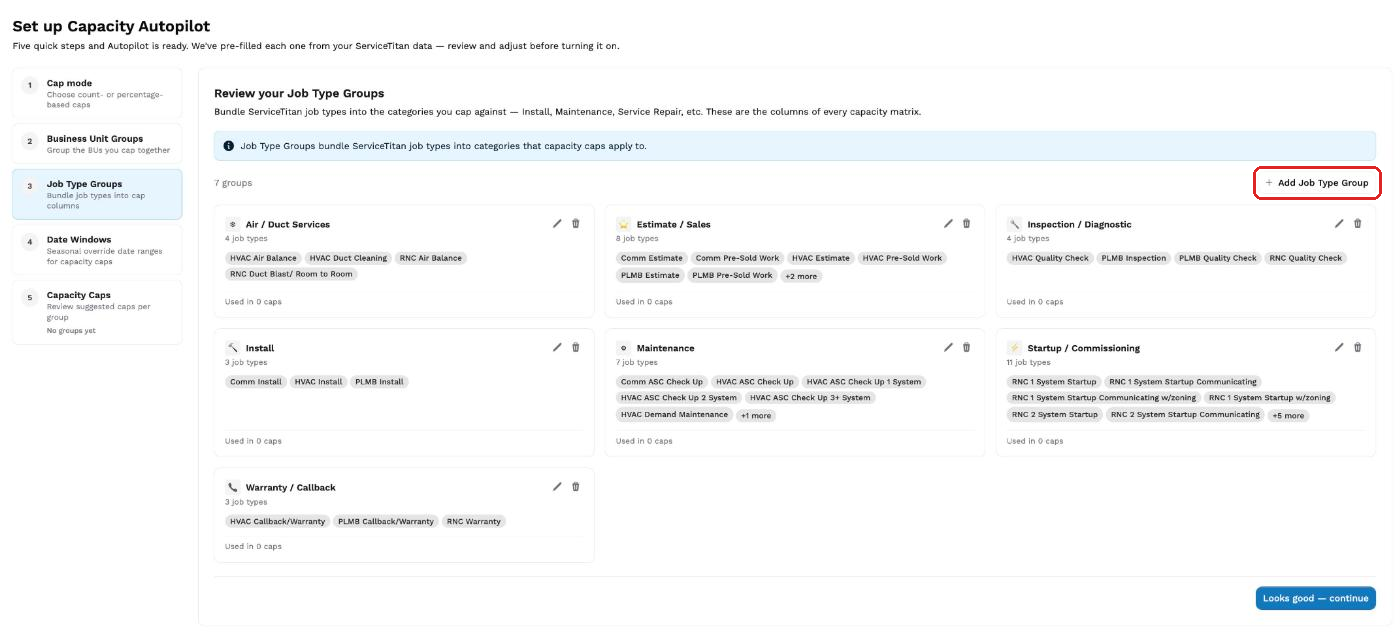
Step 3 — Job Type Groups. Same idea, for your ServiceTitan job types — so "all our tune-up SKUs are one thing for caps." Job type groups become the columns of every cap matrix. Review the suggested groups, or click Add Job Type Group, name it (e.g. "Service Calls," "Maintenance / Tune-Ups," "Installs"), pick the job types, and save. It's fine to leave low-volume, one-off job types ungrouped — anything ungrouped just runs with no cap.
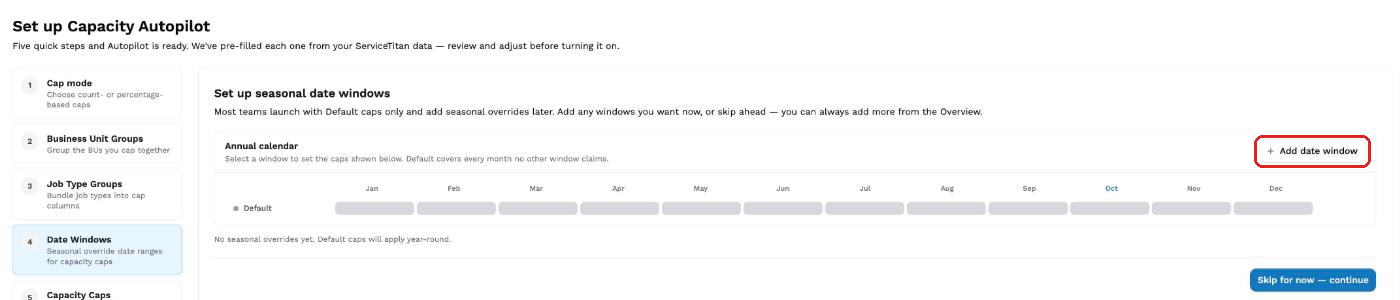
Step 4 — Date Windows (only if you have seasonal differences). The window called Default already covers everything. Add a date window only if you cap differently in a season — e.g. "cap AC Install at 80% in summer." Click Add date window, name it, pick a start and end month/day (it repeats every year), and save. No seasonal differences? Click Skip for now — continue.
Step 5 — Capacity Caps. This is where you set the actual rules. For each business unit group you get a grid: arrival windows down the side, job type groups across the top. Every cell already exists — you edit the cells, there's nothing to add or delete. UpSmith pre-fills suggested caps from your last 12 months of ServiceTitan bookings — treat them as a starting point, not a verdict, and review each one. For each row, ask yourself: "On a normal Monday morning, do I want agents booking this to 100%, or stop earlier to leave room for emergencies?" Then set the percentage. Common shapes:
70–80% — leave room for emergencies / walk-ins
100% — book it full
50% — mostly drive-time, slow it down
Leave a cell blank for no limit, or set it to 0% to block that work from the window. You confirm one business unit group at a time: click Confirm {group name} — next group to move on (the step shows how many groups you've confirmed). On the last group, click Confirm caps & turn on Autopilot — your caps are live from that point on.
How count caps add up
If your account uses count caps, each job type group gets a Max per tech / day number and one of two settings. This is the part that surprises people.
Pooled — the number is multiplied by the technicians on shift for that group that day:
Day's ceiling = your number × technicians on shift
So a pooled count cap of 3 on Plumbing Maintenance, on a day with 4 plumbers on shift, lets agents book up to 12 maintenance visits. With 2 plumbers on shift it's 6. The count includes jobs of that type already on the board that day, not just the ones your agents booked.
Per technician — each technician can take up to your number per day.
Three things follow from that:
A count cap isn't a flat daily total. If what you want is "no more than 3 plumbing maintenance visits a day, however many plumbers are working," a count cap of 3 won't give you that. A flat daily number is a job limit, which is a separate setting. Your account admins can set one under Settings → Scheduling & booking → Job limits by telling Jenny what you want. See Job Limits — How Full a Day Gets Before Agents Stop Offering It.
The ceiling follows your ServiceTitan shifts. The technician count comes from the shifts in ServiceTitan. If no technicians in that group have a shift that day, the ceiling is zero and agents won't book that work at all. Keep shifts current in ServiceTitan or the count will be off.
Per technician needs an assigned technician. If your account books jobs to unassigned, ServiceTitan assigns the tech after booking, so UpSmith can't enforce a per-technician number — only Pooled (day total) is available, and Per technician is greyed out.
What happens after setup
When an agent looks for availability, any slot that would push you over a cap is quietly left out — the customer never sees it, and agents simply stop booking past your limits.
Caps govern what your UpSmith agents book. They don't restrict what your team books directly in ServiceTitan — those bookings go through as normal.
Edits take effect within a minute or two of saving.
The same caps also pace your outbound messaging, so agents don't push outbound when capacity is tight. Nothing extra to do.
Making changes later
You can edit anything — cap mode, groups, date windows, cap values — from the Autopilot page anytime; you don't re-run the wizard. If you add new business units in ServiceTitan, hit Sync from ServiceTitan on the Business Unit Groups tab to pull them in; new business units show up ungrouped for you to assign or leave. New job types don't need a sync — they appear in the Job Type Group picker on their own.
Blocking or changing capacity for specific dates
Need your agents to stop booking something for a few days — a heat wave where you want techs free for no-cool calls, a holiday week, a stretch when a crew is out? Set that job type to 0% on a date window covering those dates. Step-by-step walkthrough here: Block bookings for specific dates.
One caution: date windows repeat every year, so delete or reset a one-off window once the dates pass — otherwise it comes back next year.
Common questions
What's the difference between a Business Unit Group and a Job Type Group? A Business Unit Group buckets your ServiceTitan business units (location- or trade-based); a Job Type Group buckets your job types (SKUs). A cap is written on a pair of the two — you need both.
Do I have to set a cap for every combination? No. Only the ones you want to throttle. Anything without a cap runs at 100%.
Can I cap differently in different cities? Yes — that's what Business Unit Groups are for. Make per-city groups (e.g. "Gaston Plumbing" vs. "Greenville Plumbing") and cap each.
We added a new service line — what do I do? Sync from ServiceTitan and create/update the Business Unit Group (Step 2) and Job Type Group (Step 3), then set the cap values (Step 5). Skip date windows unless it's seasonal.
The suggested percentages look way off. The suggestions come from past booking history, so if you've changed how you operate recently they can be stale. Set them from your own read, and check back in a couple of weeks to fine-tune.
I set a count cap of 3 and we're booking far more than 3 a day. On Pooled, that's the per-technician math: 3 × the technicians on shift. If you meant 3 in total, you want a job limit instead. Your account admins can set one in Settings → Scheduling & booking → Job limits by asking Jenny. Then clear the count cap here so the two don't overlap.
A count cap is blocking a whole day even though we have room. Check that the technicians in that group have shifts in ServiceTitan for that day. With no shifts, the count cap's ceiling is zero.
Agents are still booking past my cap — why? Start with coverage: does a cap actually exist for the business unit group, job type group, arrival window, day, and date window that's slipping through? Anything uncovered runs at 100%. If you're blocking dates, confirm you were on that date window and not Default, and that every arrival window and every day in the range shows a percentage. A 0% cap blocks outright — it doesn't need volume to kick in. Percentage caps below 100% are more conservative and only start dropping slots once a window is provably over the limit. On Pooled count caps, remember the number is multiplied by the technicians on shift. Still looks wrong? Email support@upsmith.com.
Where to go next
Block bookings for specific dates — heat waves, holidays, crew time off
Scheduling & Bookings — how agents book into ServiceTitan
Requesting a Change to Your Agent's Messaging or Behavior — other ways to tune how and when your agents work